
Settings
Ensure your organization’s settings are optimized in pinDeliver for smoother and more precise daily operations.
Basic settings
The basic settings cover all your company information. Please refer to the image below for an explanation of the fields.
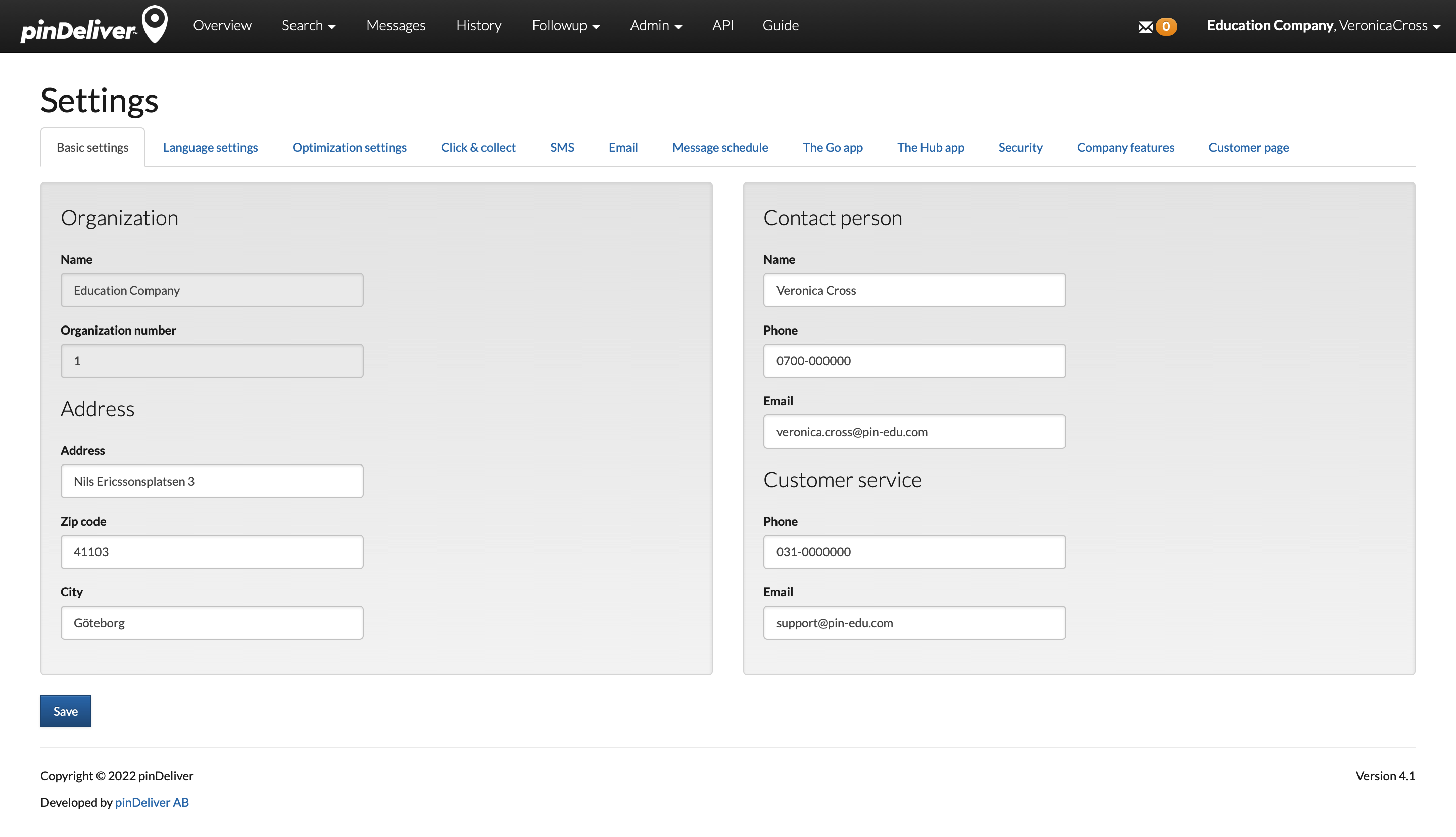
| Segment | Field | Explanation |
|---|---|---|
| Organization | ||
| Name | Non-editable company name set by pinDeliver when the account is created. | |
| Organization number | Company organization number. | |
| Address | ||
| Address | Company street name. | |
| Zip code | Company zip code. | |
| City | Company city. | |
| Contact person | ||
| Name | Name of the contact person responsible for the pinDeliver agreement and usage. | |
| Phone | Phone number to the contact person. | |
| Email address to the contact person. | ||
| Customer service | ||
| Phone | Phone number to the internal customer service. Used for drivers. | |
| Email address to the internal customer service. Used for drivers. |
Language settings
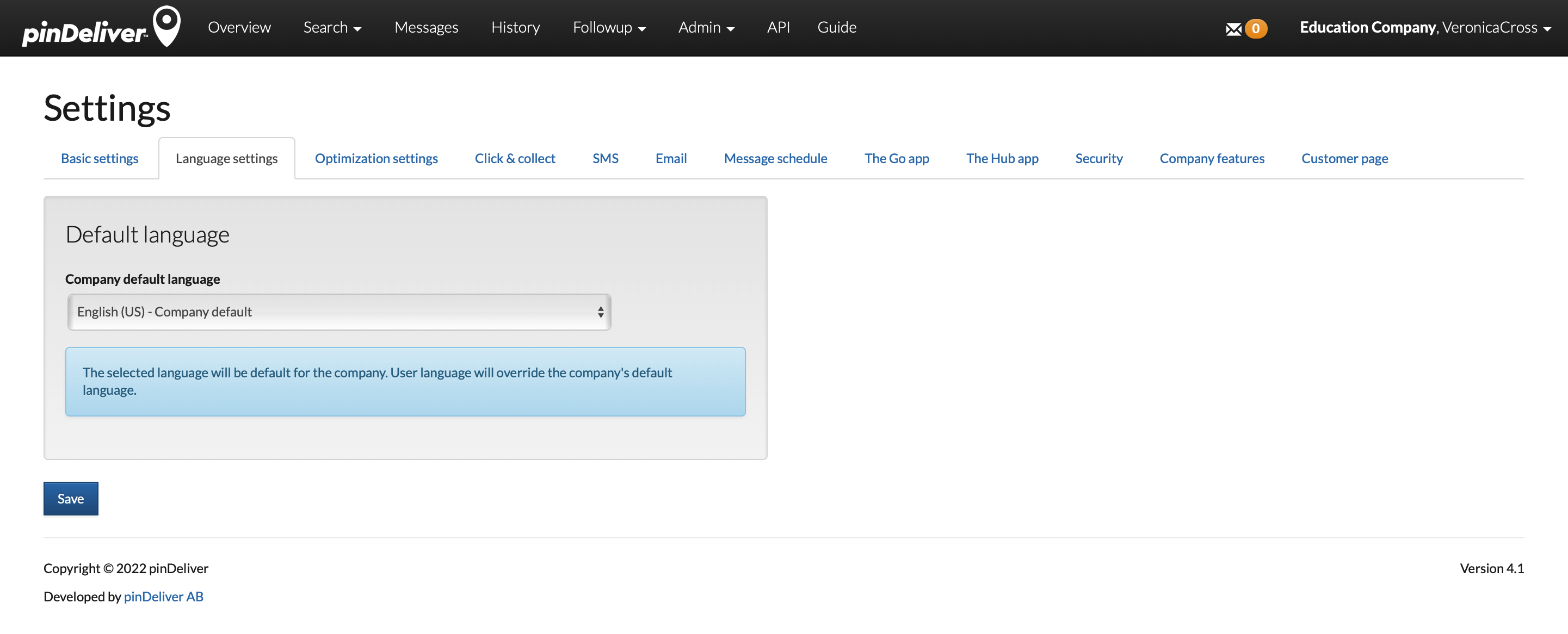
This page allows you to define the company’s default language. While it is possible to customize the language for individual users, drivers, and customer orders, the default language will be used in cases where no specific language is selected.
Optimization settings
This page is dedicated to configuring the optimization engine’s behavior when calculating optimal delivery routes. While default values are available, the system can prioritize more specific settings assigned to delivery groups, customer orders, vehicles, and other entities. Additionally, the setup includes functionality for calculating stop times based on specific parameters.
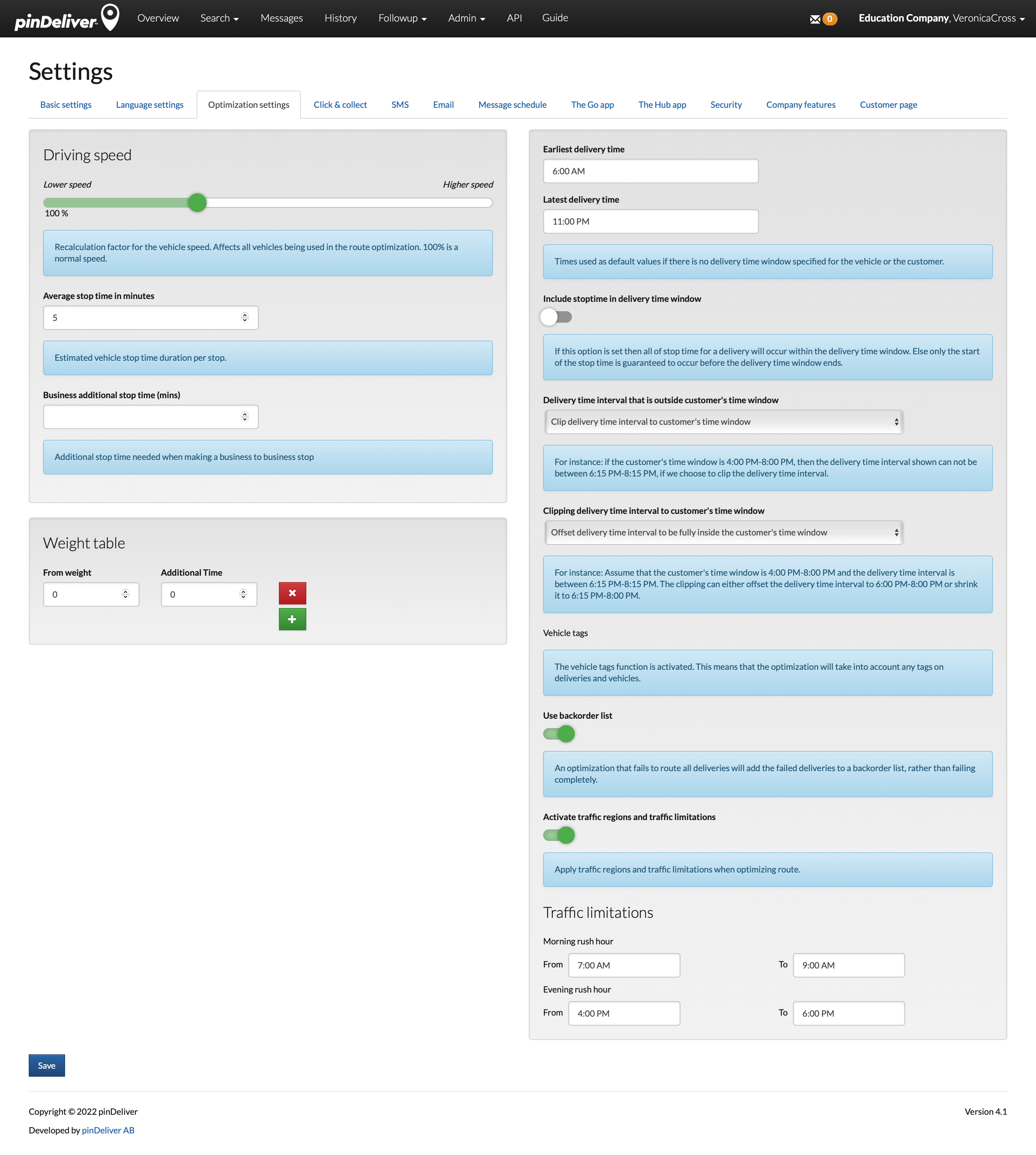
| Field | Explanation |
|---|---|
| Driving speed | Adjusts the speed factor for driving. 100% represents normal speed, and setting it to, for example, 80% will reduce driving times by 20% while maintaining stop times. |
| Average stop time in minutes | Default stop time for the vehicle if no other time is defined in the delivery group or on the customer order. |
| Business additional stop time (min) | Specifies the additional minutes added to a stop if it is categorized as a business-to-business (B2B) stop. If stop time is defined on the individual customer order, this field has no effect. |
| From weight | Part of the weight table used to add stop time for heavy goods. Connected to the “Additional Time” field. |
| Additional Time | Number of minutes added for the specified weight in the ‘From Weight’ field. You can add multiple rows with different specifications. |
| Earliest delivery time | Default time window start used if no delivery time window is specified for the vehicle or the customer. |
| Latest delivery time | Default time window end used if no delivery time window is specified for the vehicle or the customer. |
| Include stop time in delivery time window | If enabled, the entire delivery will happen during the specified time window. If not, we can only guarantee delivery at the start of the delivery window before it ends. |
| Delivery time interval that is outside customer’s time window | Defines how to display delivery times when part of the delivery time interval is outside the customer’s time window. For example, if the customer’s time window is 4:00 PM-8:00 PM, this setting determines how delivery times are shown when they fall between 6:15 PM-8:15 PM. |
| Clipping delivery time interval to customer’s time window | This option is visible only when “Delivery time interval that is outside customer’s time window” is set to “Clip delivery time.” For example, if the customer’s time window is 4:00 PM-8:00 PM and the delivery time interval is 6:15 PM-8:15 PM, this setting allows you to choose whether to offset the delivery time interval to 6:00 PM-8:00 PM or shrink it to 6:15 PM-8:00 PM. |
| Use backorder list | Instead of failing a route optimization that can’t route all deliveries, this option adds the failed deliveries to a backorder list. |
| Activate traffic regions and traffic limitations | Enables the application of traffic regions and traffic limitations during route optimization. Morning and evening rush hours are specified below. |
| Morning rush hour From | The start time for morning rush hours. Traffic restrictions are adjusted in the Traffic restrictions section. |
| Morning rush hour To | The end time for morning rush hours. Traffic restrictions are adjusted in the Traffic restrictions section. |
| Evening rush hour From | The start time for evening rush hours. Traffic restrictions are adjusted in the Traffic restrictions section. |
| Evening rush hour To | The end time for evening rush hours. Traffic restrictions are adjusted in the Traffic restrictions section. |
Click & collect
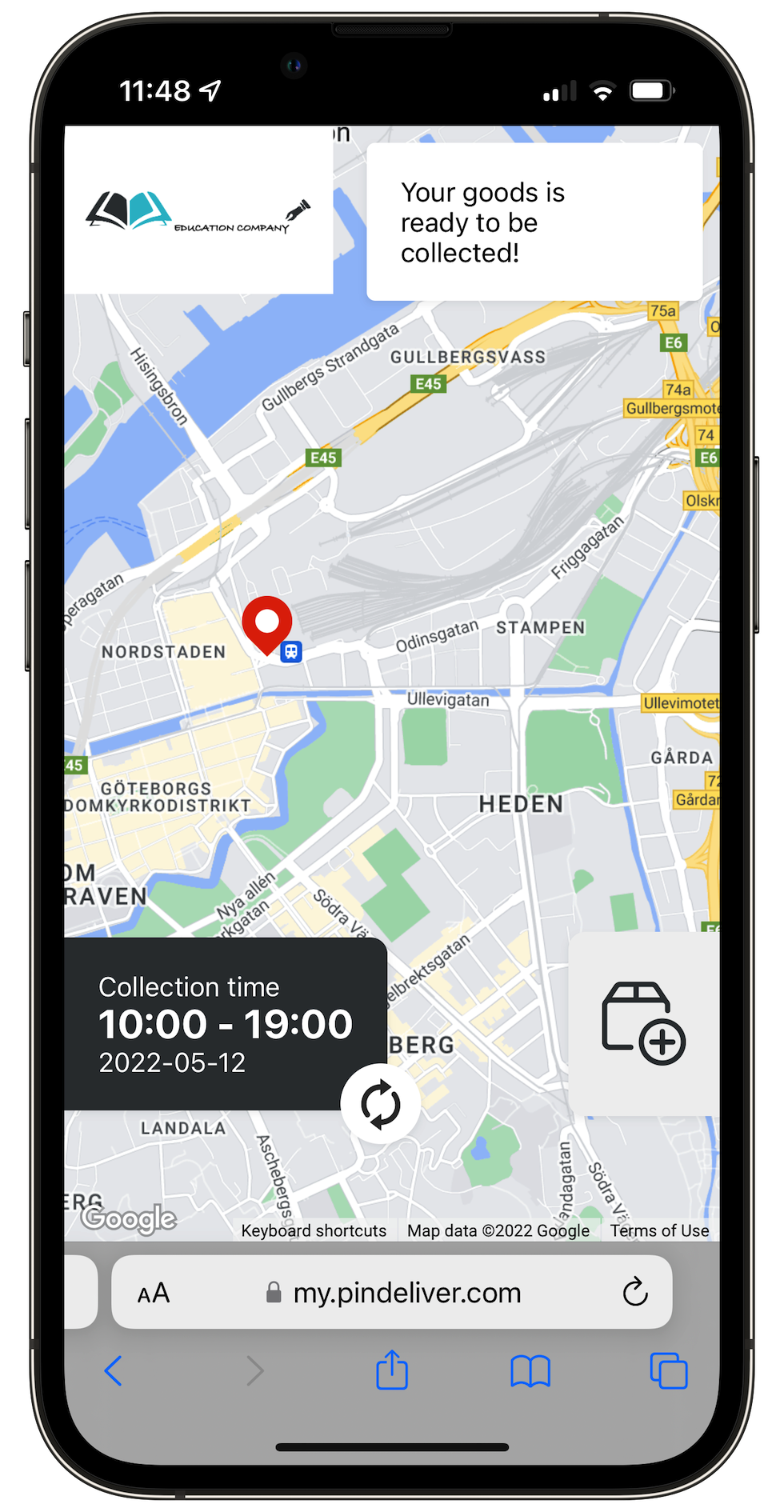
pinDeliver can also manage pickup orders, known as Click & Collect, where customers collect their orders from your warehouse. To enable this functionality, your warehouse must be configured as a Delivery Group, and you must activate “Use depots” and provide a depot address. The depot address represents the location where customers can pick up their goods, and it will be displayed on the customer’s information page as a map.
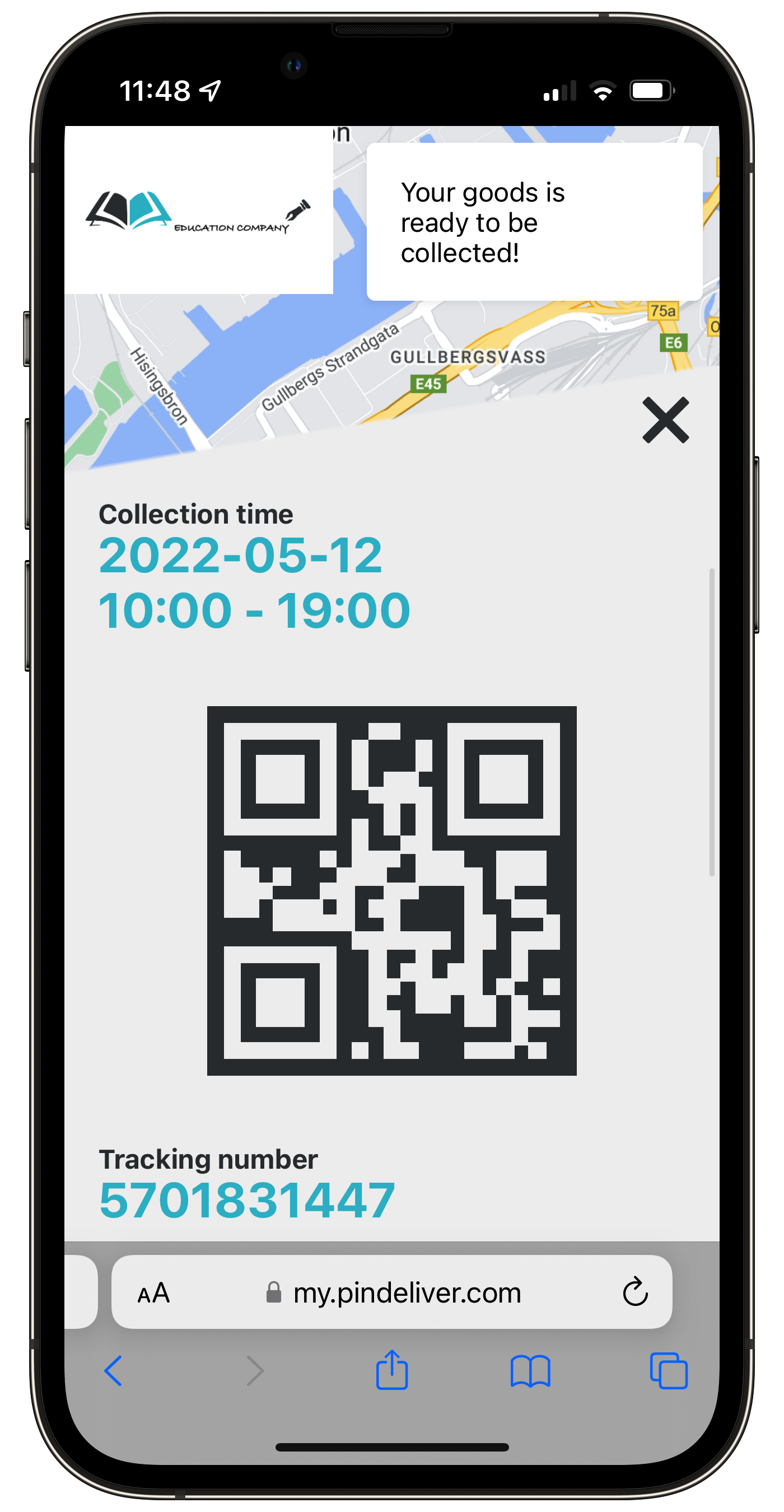
On this page, you have the option to display a QR code on the customer’s information page. This QR code can be scanned using the Hub app when customers arrive to collect their goods.
To display the QR code, the following conditions must be met:
- Display QR-code on the customer page must be set to Yes on this settings page.
- Display the tracking number on the customer page must also be set to Yes on the Customer page.
- Each customer order must have a Tracking number assigned since this value is encoded in the QR code.
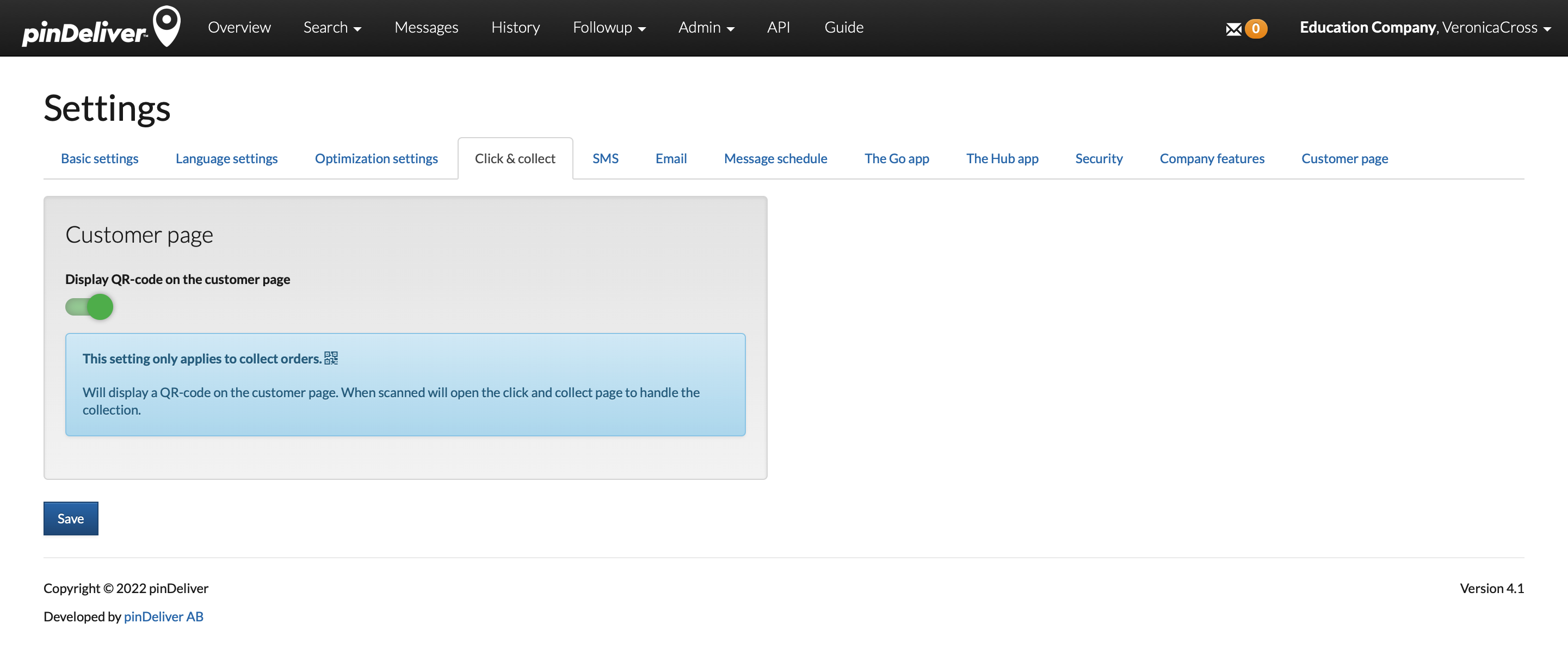
Example of a customer information page with QR code
To access the QR code, the customer needs to click on the package icon located in the lower-right corner, which displays additional information.
SMS
The primary mode of communication in pinDeliver is through SMS, known for its speed and reliability. While there are general SMS settings available for the entire account, you can also configure specific SMS settings for different senders. To set SMS preferences for a particular sender, navigate to the sender’s settings under senders. Please note that if SMS settings are configured for a specific sender, they will take precedence over the settings described on this page. Keep in mind that the explanations for the fields below also apply to corresponding fields in the senders section.
As you can see below, several fields serve the same purpose: creating message templates that are sent based on various triggers. All templates can include aliases (placeholders) that are replaced with specific text from the customer order, such as the customer’s name or estimated delivery time. Detailed information about aliases can be found in the blue square on the right.
It is essential to carefully consider which triggers you want to utilize, as some triggers may closely overlap in the workflow, potentially leading to excessive communication with the customer.
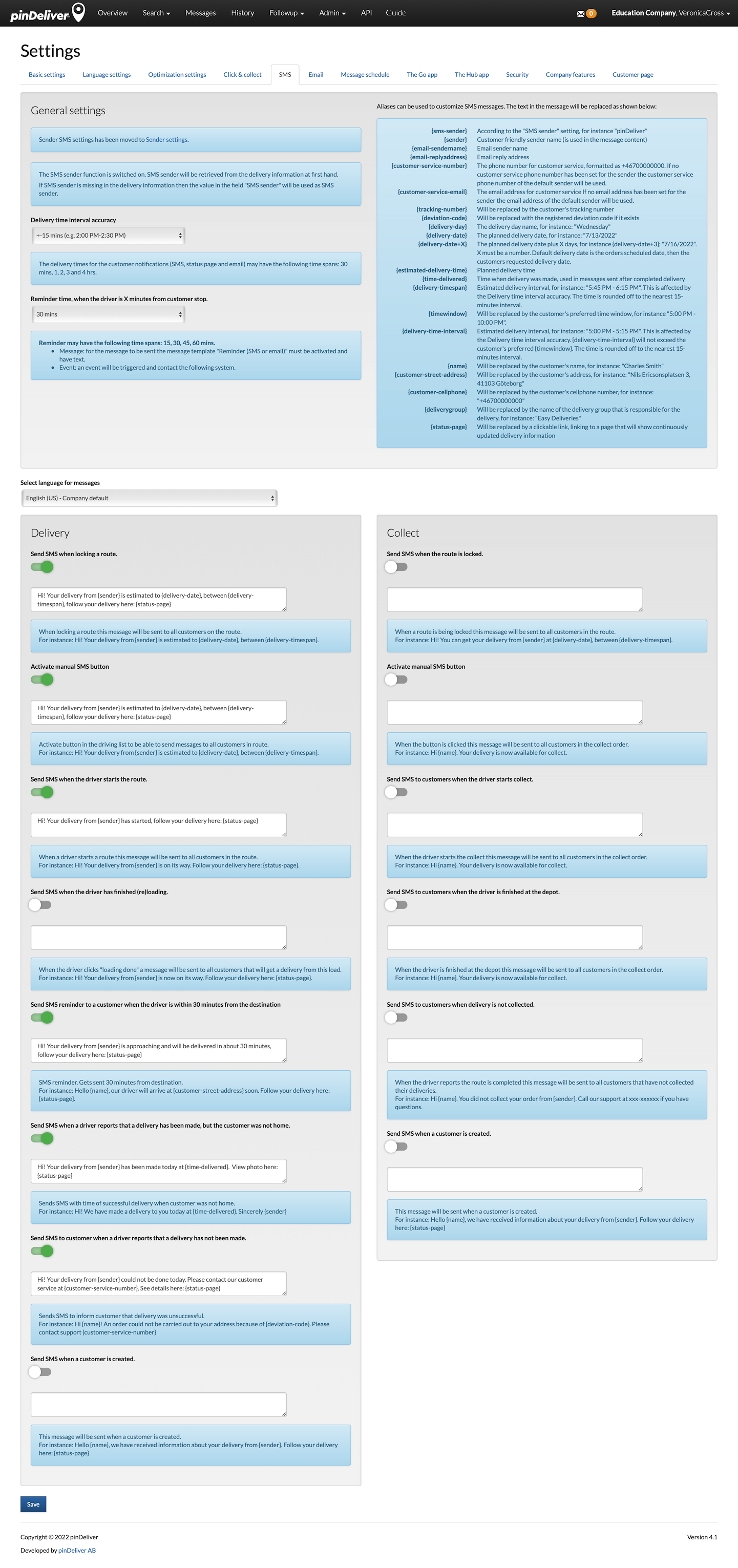
| Segment | Field | Explanation |
|---|---|---|
| General settings | ||
| Delivery time interval accuracy | This field specifies the length, in minutes, of the delivery time interval displayed to your customers. Use the smallest interval that is manageable for better customer satisfaction. | |
| Reminder time, when the driver is X minutes from customer stop. | This setting determines how many minutes before a planned delivery time an SMS should be sent to the customer. pinDeliver will identify deliveries within X minutes and send SMS messages based on the template described below. Please note that only stops within X minutes will receive a message, limited to one message per stop. If your schedule is tight, each stop will only receive one message, even if there are multiple stops within X minutes before reaching the stop. However, if the driving time between stops is greater than X minutes, that stop will not receive any message at all. | |
| Select language for messages | Choose the language in which you want to create message templates. | |
| Delivery | Send SMS when locking a route | This message is sent to all customers on the route when the route is locked. |
| Activate manual SMS button | This setting activates a button in the driving list, allowing the user to send messages to all customers in the route. | |
| Send SMS when the driver starts the route | When a driver starts a route, this message is sent to all customers in the route. | |
| Send SMS when the driver has finished (re)loading | When the driver marks “loading done”, a message is sent to all customers expecting a delivery from this load. | |
| Send SMS reminder to a customer when the driver is within X minutes from the destination | This setting triggers an SMS reminder when the driver is X minutes away from the customer’s destination. The value of X is determined by the reminder time set in “Reminder time when the driver is X minutes from customer stop”. | |
| Send SMS when a driver reports that a delivery has been made, but the customer was not home. | Sends an SMS with the time of successful delivery when the customer was not home. If the driver has taken a photo, it will be displayed on the Customer Information page that can be linked in the message. | |
| Send SMS to customer when a driver reports that a delivery has not been made | Sends an SMS to inform the customer that the delivery was unsuccessful. If the driver has taken a photo, it will be displayed on the Customer Information page that can be linked in the message. | |
| Send SMS when a customer is created. | This message is sent when a new customer is created. | |
| Collect | Send SMS when the route is locked | This message is sent to all customers in the route when the route is locked. |
| Activate manual SMS button | Clicking this button sends the message to all customers in the collect order. | |
| Send SMS to customers when the driver starts collect | When the collection order is started, this message is sent to all customers in the collect order. | |
| Send SMS to customers when the driver is finished at the depot | When click & collect is completed at the depot, this message is sent to all customers in the collect order. | |
| Send SMS to customers when delivery is not collected | When the driver reports the route as completed, this message is sent to all customers who have not collected their deliveries. | |
| Send SMS when a customer is created. | This message is sent when a new customer is created. |
The primary communication method in pinDeliver is SMS, known for its speed. However, email is also an available communication option, allowing for more complex messages and HTML code for design.
You have the option to set general email preferences for the entire account or define specific email preferences for various senders. When email preferences are established for a particular sender, they will take priority over the settings outlined on this page. Please note that the field explanations below are also applicable to corresponding fields in the senders section.
As you can see below, several fields serve the same purpose: creating message templates triggered by various events. All templates can include aliases (placeholders) that will be replaced with text from the customer order, such as the customer’s name or estimated delivery time. You can also choose whether each message should be in HTML or plain text format.
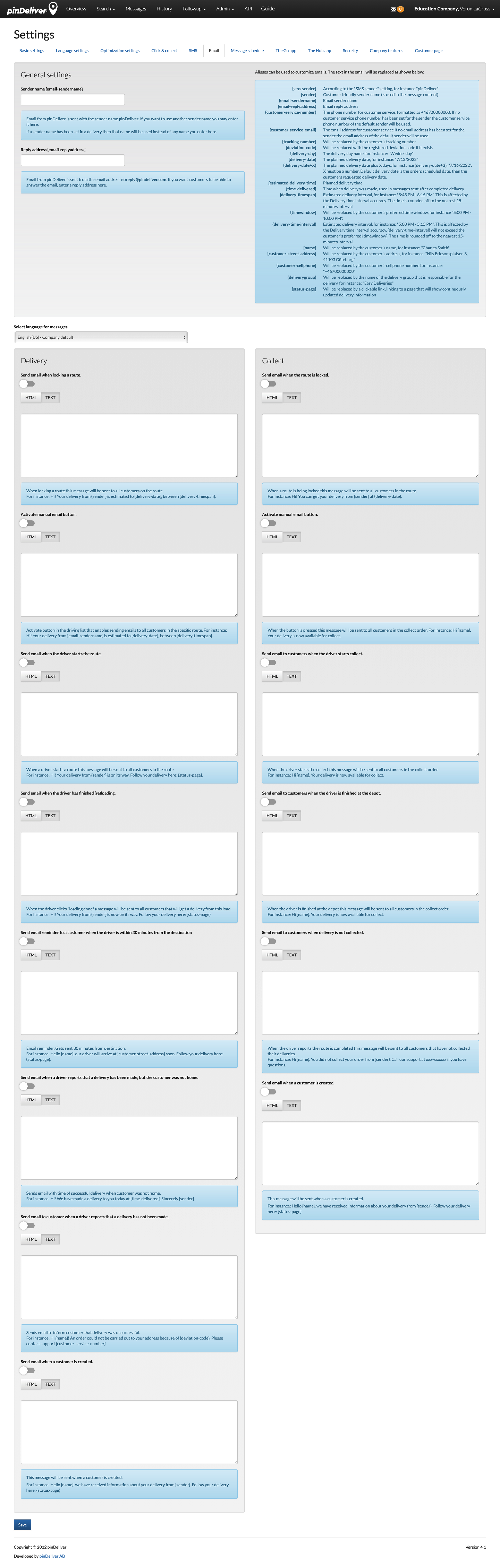
| Segment | Field | Explanation |
|---|---|---|
| General settings | Sender name {email-sendername} | Email sent from pinDeliver displays the sender name as pinDeliver. You can specify a different sender name in this field. If a sender name is provided in a delivery, it will take priority over this setting. |
| Reply address {email-replyaddress} | By default, emails from pinDeliver are sent from the email address noreply@pindeliver.com. If you want customers to be able to reply to the email, you can enter a reply address in this field. | |
| Select language for messages | Choose the language in which you want to compose message templates. | |
| Delivery | Send email when locking a route | When a route is locked, this email message is sent to all customers on the route. |
| Activate manual email button. | Enables a button in the driving list that allows sending emails to all customers on the specific route. | |
| Send email when the driver starts the route | When a driver starts a route, this email message is sent to all customers in the route. | |
| Send email when the driver has finished (re)loading | When the driver clicks “loading done,” a message is sent to all customers who will receive a delivery from this load. | |
| Send email reminder to a customer when the driver is within X minutes from the destination | An email reminder is sent X minutes from the destination. X is replaced by the reminder time set in the SMS settings for “Reminder time, when the driver is X minutes from customer stop”. | |
| Send email when a driver reports that a delivery has been made, but the customer was not home | Sends an email with the time of successful delivery when the customer was not home. | |
| Send email to customer when a driver reports that a delivery has not been made | Sends an email to inform the customer that the delivery was unsuccessful. | |
| Send email when a customer is created | This message is sent when a new customer is created. | |
| Collect | Send email when the route is locked | When a route is locked, this email message is sent to all customers in the route. |
| Activate manual email button. | When the button is pressed, this email message is sent to all customers in the collect order. | |
| Send email to customers when the driver is finished at the depot | When the collection order is started at the depot, this email message is sent to all customers in the collect order. | |
| Send email to customers when delivery is not collected | When the collection order is completed, this email message is sent to all customers who have not collected their deliveries. | |
| Send email when a customer is created | This email message is sent when a customer is created. |
Message schedule
The message scheduler allows you to send messages to customers at specific, recurring times. Rather than relying solely on triggers linked to routing events (such as locking), you can plan messages to be sent consistently at set times. Of course, you can also use this functionality in combination with triggers based on the planning process.
For email messages, you can choose between HTML-coded content or plain text.
Messages will be sent within a time window of approximately ±10 minutes. They will only be sent to route stops where the route is locked, and the scheduled departure date aligns with the weekday specified in the message schedule.
You can view active schedules in the Schedule segment.
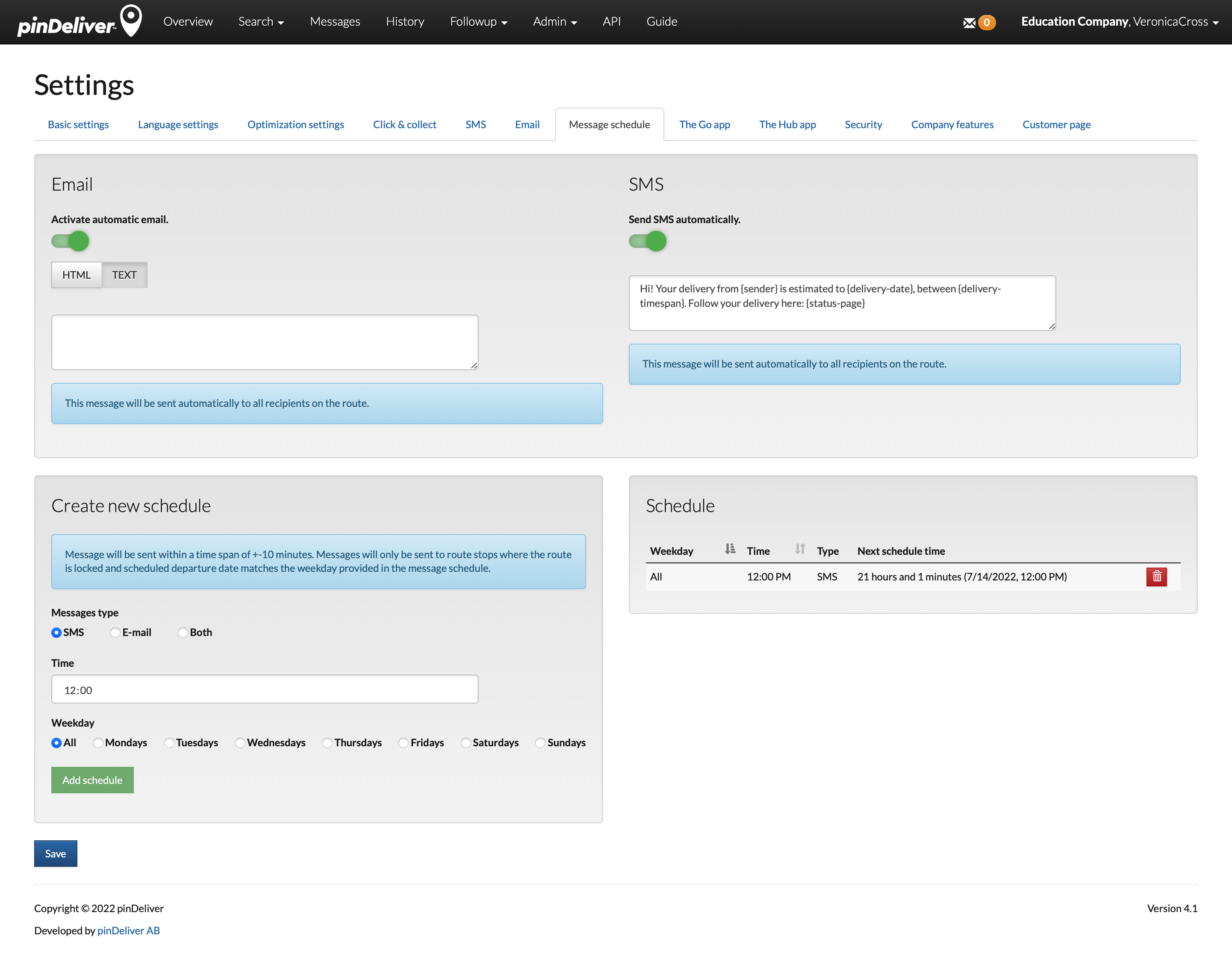
| Segment | Field | Explanation |
|---|---|---|
| Activate automatic email | Enables automatic email messages to be sent to all recipients on the route based on the schedules. | |
| SMS | Send SMS automatically | Enables automatic SMS messages to be sent to all recipients on the route based on the schedules. |
| Create new schedules | Messages type | Specifies whether to send only email, SMS, or both messages for each schedule. |
| Time | Sets the time of day when the message(s) should be sent. | |
| Weekday | Determines whether the message schedule should apply to a specific day or all days. For weekdays-only scheduling, create a schedule for each weekday. |
The Go app
The pinDeliver Go app is designed to assist drivers and offers a wide range of functionalities. Users can customize the app settings to control what information is displayed to the driver, although certain information is mandatory.
We offer two versions of the app, each with its own unique features. The web app runs directly in a web browser on the device, making it compatible with virtually all devices equipped with a web browser.
The Native app, on the other hand, is specifically developed for Android and iOS devices. Users may notice slight behavioral differences between the two apps. In the web app, all customer data is loaded at once when opening the Driving list. In the Native app, customer data is loaded individually but automatically when the driver completes the previous stop. The Native app also supports the scanning of package numbers during loading, unloading, and other workflows, such as returns.
Both apps are designed to be highly intuitive, requiring minimal training for drivers. The primary task for drivers is to select the type of stop they are making, with three available options and similar instructions in both apps:
- OK – Indicates that the order was successfully delivered/picked up, and the customer was available to receive the package.
- OK, NOT AT HOME – Indicates that the order was successfully delivered/picked up, but the customer was not available to receive the package. This option often includes the option to capture a photo.
- NOT OK – Indicates that the order/pickup could not be completed. In this case, the driver typically selects a deviation code to explain the issue.
Difference between the Go Web App and the Go Native App
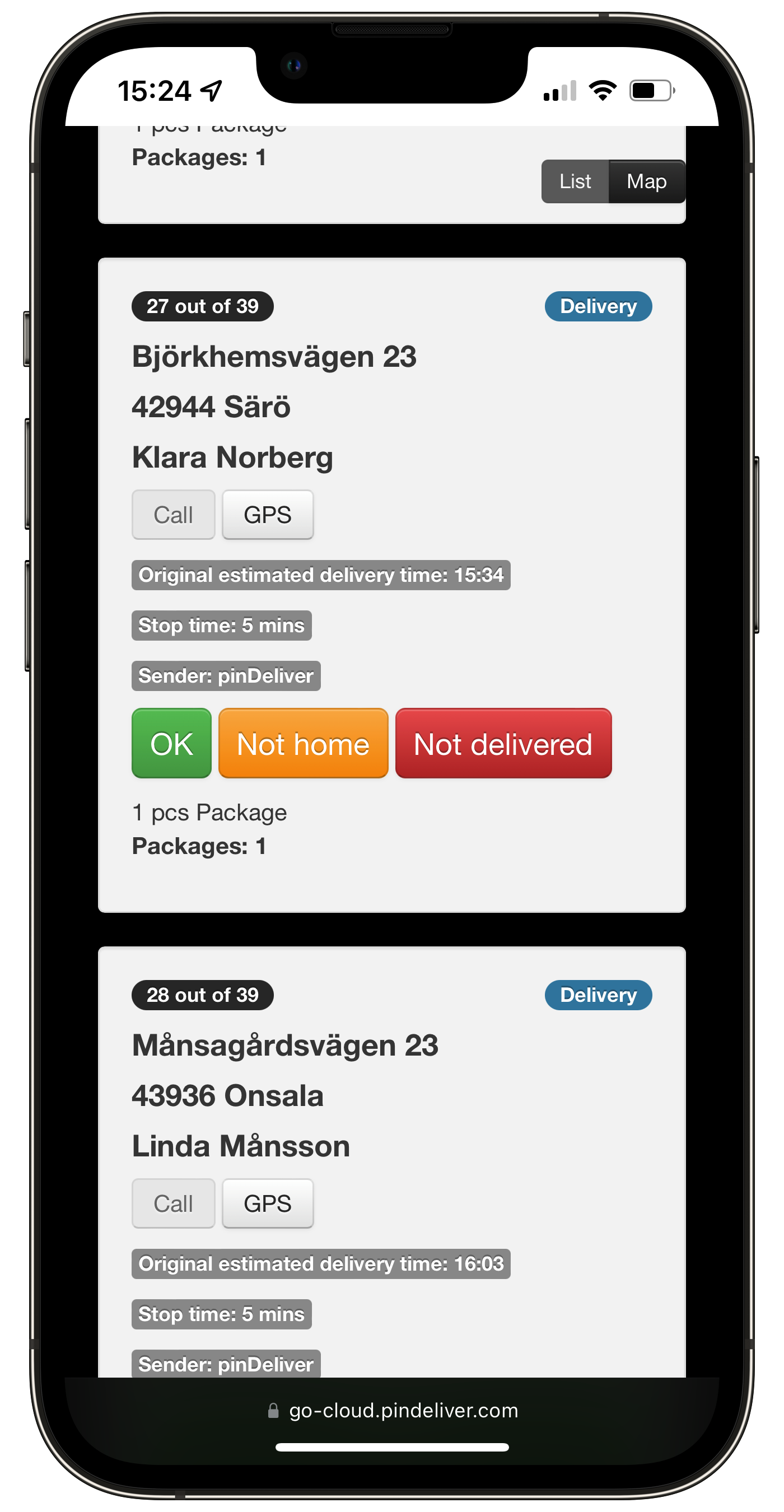
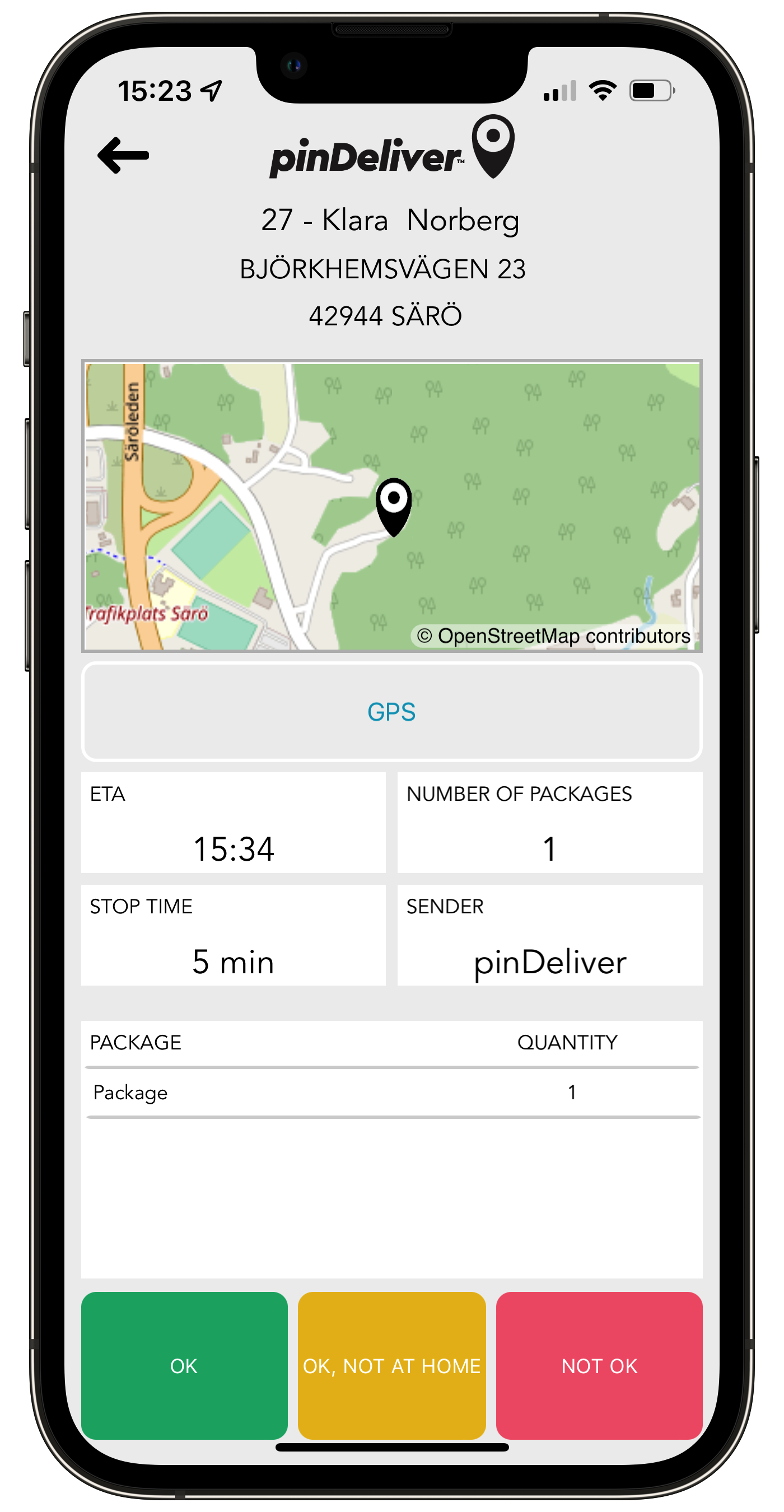
You can choose to display behavior data using certain settings. Please refer to the settings screenshot and the explanation provided below.
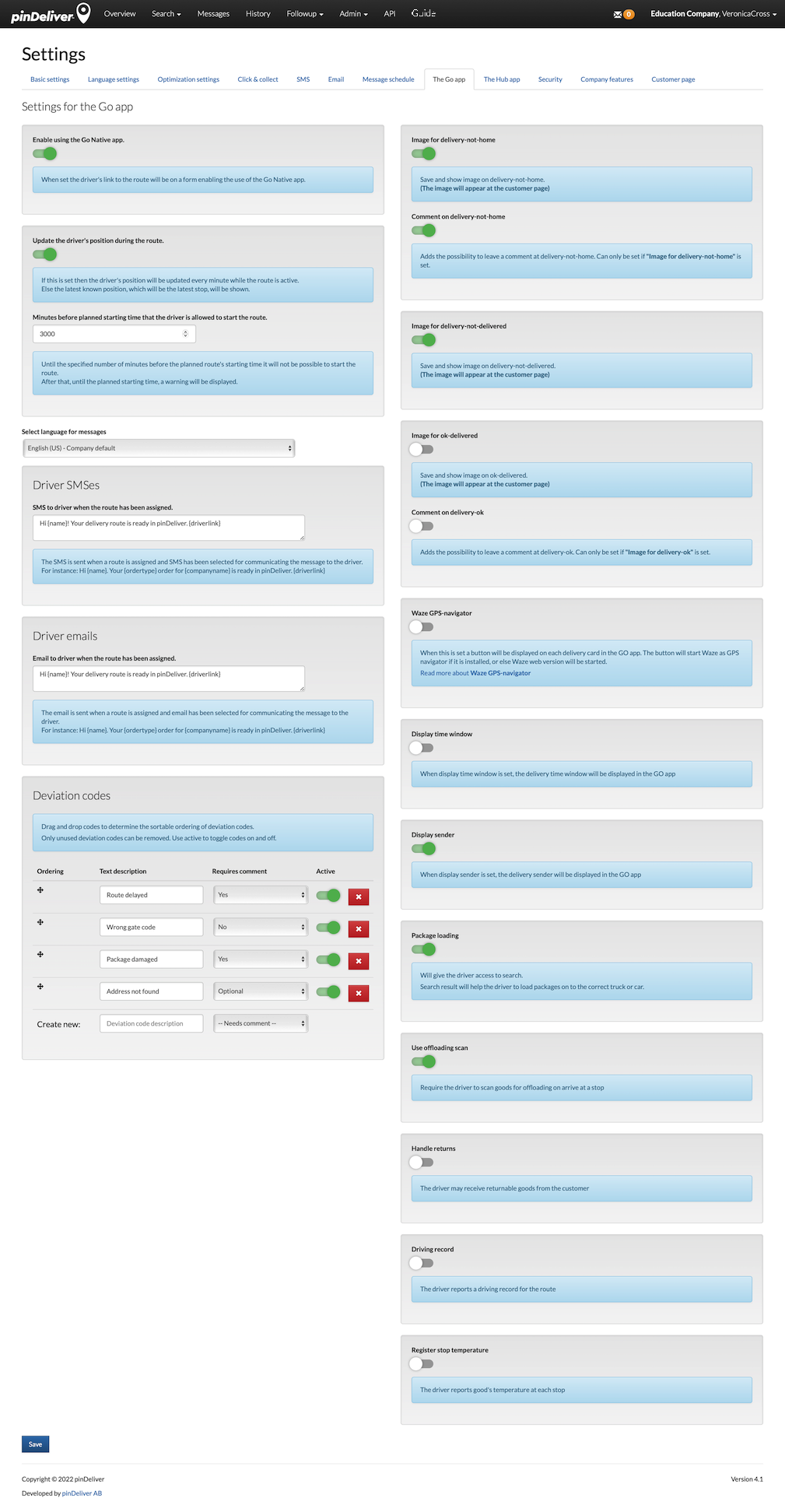
| Segment | Field | Explanation | Web app supported | Native app supported |
|---|---|---|---|---|
| General | Enable using Go Native app | Allows the use of the Native app. | X | |
| Update the driver’s position during the route | If enabled, the driver’s position updates every minute during an active route. Otherwise, the latest known position, typically the latest stop, is displayed. | X | ||
| Minutes before planned starting time that the driver is allowed to start the route | Sets the time in minutes before the planned route start when the driver can start the route. A warning is displayed until the planned starting time. | X | X | |
| Image for delivery-not-home | Automatically opens the phone camera when handling a OK, NOT HOME stop. The photo is visible on the customer page. | X | X | |
| Comment on delivery-not-home | Adds the possibility to leave a comment at a OK, NOT HOME stop. Requires “Image for delivery-not-home” to be set. | X | X | |
| Image for delivery-not-delivered | Saves and displays an image for NOT OKstops (visible on the customer page). | X | X | |
| Image for ok-delivered | Saves and displays an image for OK stops (visible on the customer page). | X | X | |
| Comment on delivery-ok | Enables comments for OK stops. Requires “Image for OK Delivered” to be enabled. | X | ||
| Waze GPS-navigator | Displays a button on each delivery card in the GO app. The button launches Waze as a GPS navigator if installed. Otherwise, it opens the web version of Waze. | X | X | |
| Display time window | Displays the delivery time window in the GO app. | X | X | |
| Display sender | Displays the delivery sender in the GO app. | X | X | |
| Package loading | Gives the driver access to package search functionality, aiding in loading packages onto the correct vehicle. | X | ||
| Use offloading scan | Requires the driver to scan goods when offloading at each stop. | X | ||
| Handle returns | Permits the driver to receive returnable goods from customers. | X | X | |
| Driving record | Allows the driver to report a driving record for the route, including details such as vehicle start and stop mileage. | X | ||
| Register stop temperature | Permits the driver to report the temperature of goods at each stop. | X | ||
| Driver SMS | SMS to driver when the route has been assigned | Sends an SMS to the driver when a route is assigned, given that SMS is chosen as the communication method. | X | X |
| Driver Emails | Email to driver when the route has been assigned | Sends an email to the driver when a route is assigned, given that email is chosen as the communication method. | X | X |
| Deviation codes | Ordering | Allows changing the order of deviation codes available to the driver. Drag and drop codes after creation. | X | X |
| Requires comment | Specifies whether the driver must provide a comment when selecting a deviation code. | X | X | |
| Active | Activates or deactivates a deviation code. | X | X |
The Hub app
The Hub App is primarily designed for use in terminals or warehouses to streamline and improve the handling of goods, enhancing daily operations, and reducing delivery errors. Additionally, it offers a convenient solution for managing packages related to Click & Collect orders. Users can scan the customer information page when customers arrive to collect their packages for Click & Collect orders, making the process smoother and more efficient.
Hub App Interface and Customization
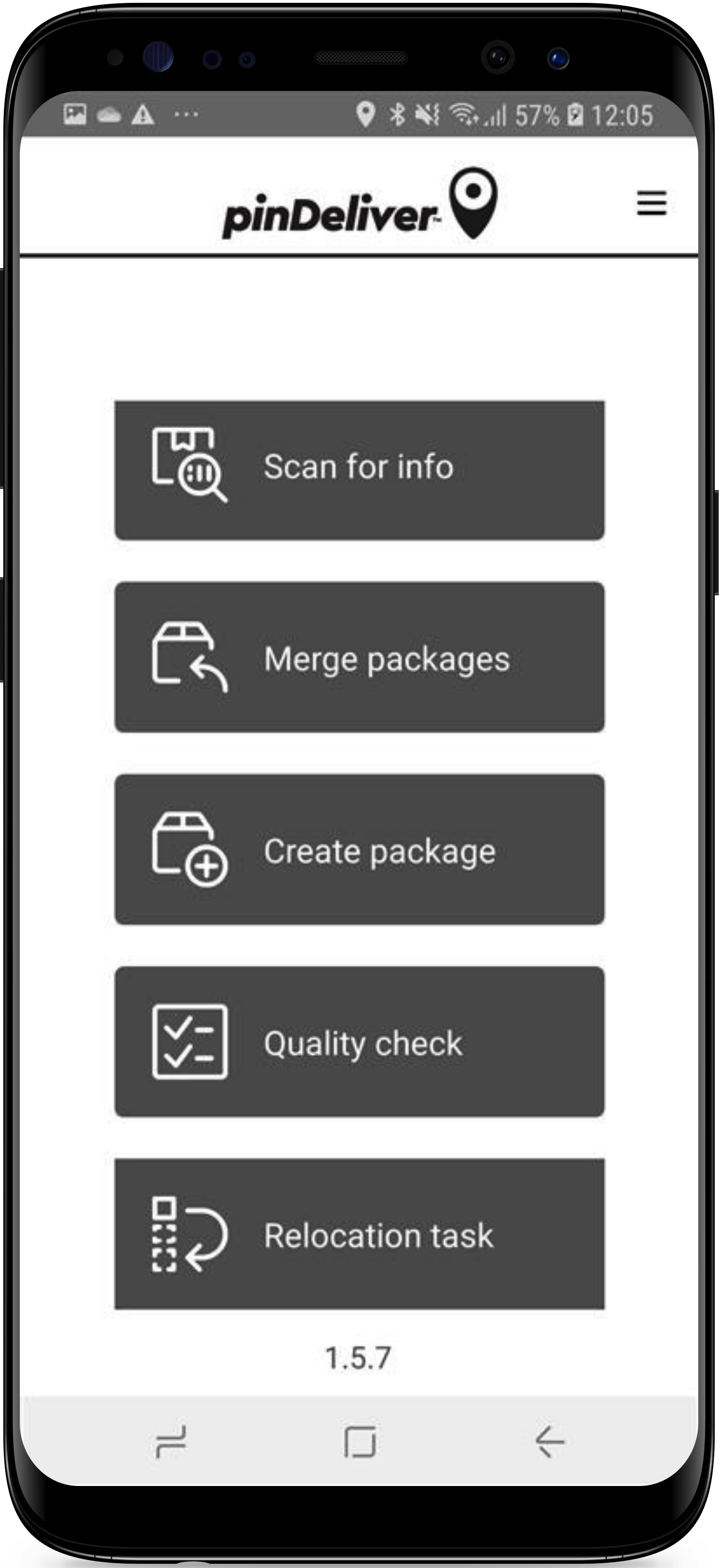
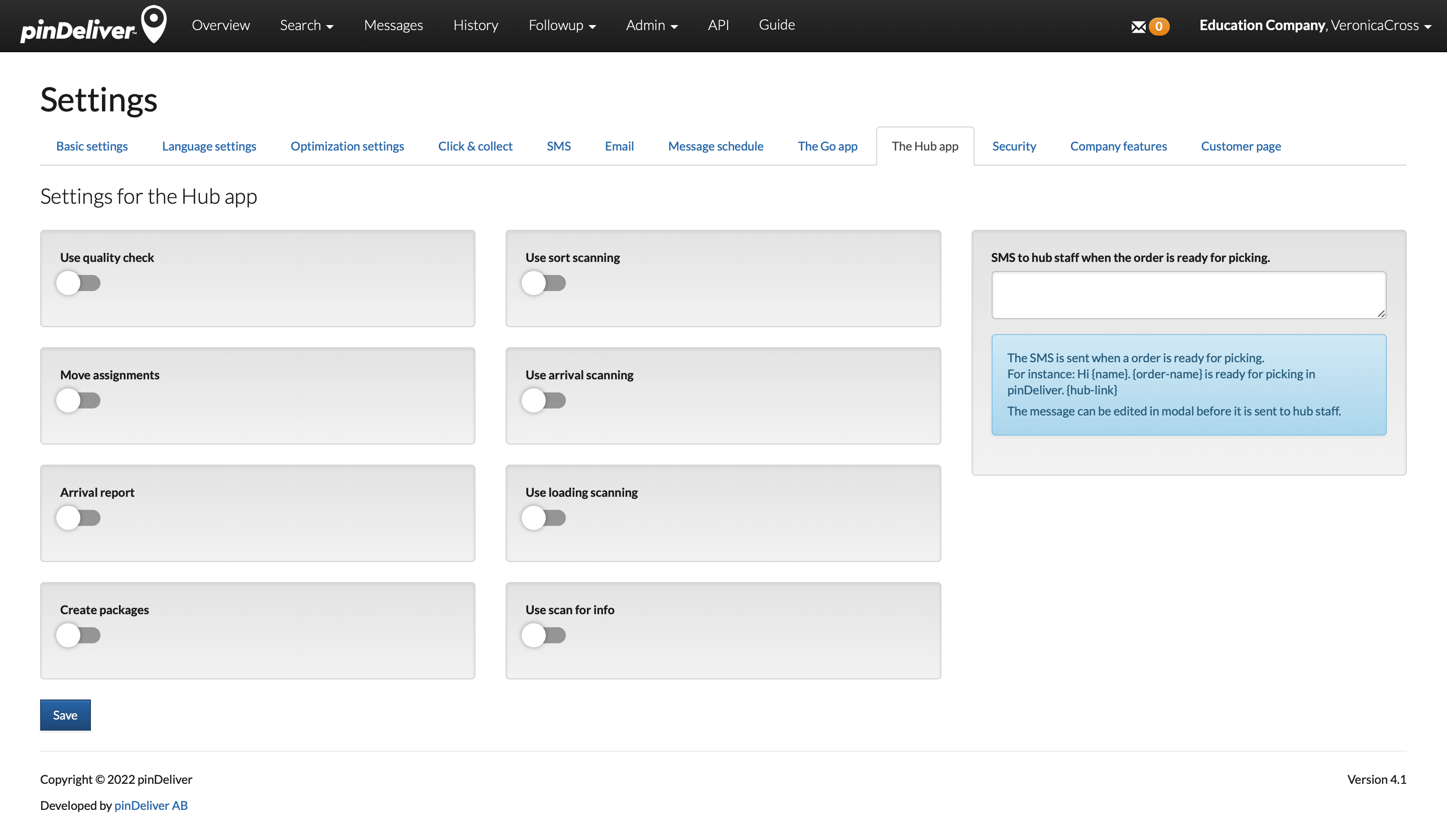
The image below provides an example of the Hub App, with the settings described further determining the visible and accessible options and buttons within the Hub App.
| Field | Explanation |
|---|---|
| Quality check | Displays a checklist of tasks before starting a route. |
| Sort scanning | Scan packages for sorting into different routes. |
| Move assignments | Creates an assignment to transfer packages between routes. |
| Arrival scanning | Scan packages upon arrival at the terminal, making them available for routing. |
| Arrival report | Provides a summary of all goods scanned upon arrival. |
| Loading scanning | Scan packages for loading onto vehicles. |
| Create packages | Create a new package. |
| Scan for info | Scan to gather more information about the package. |
Security
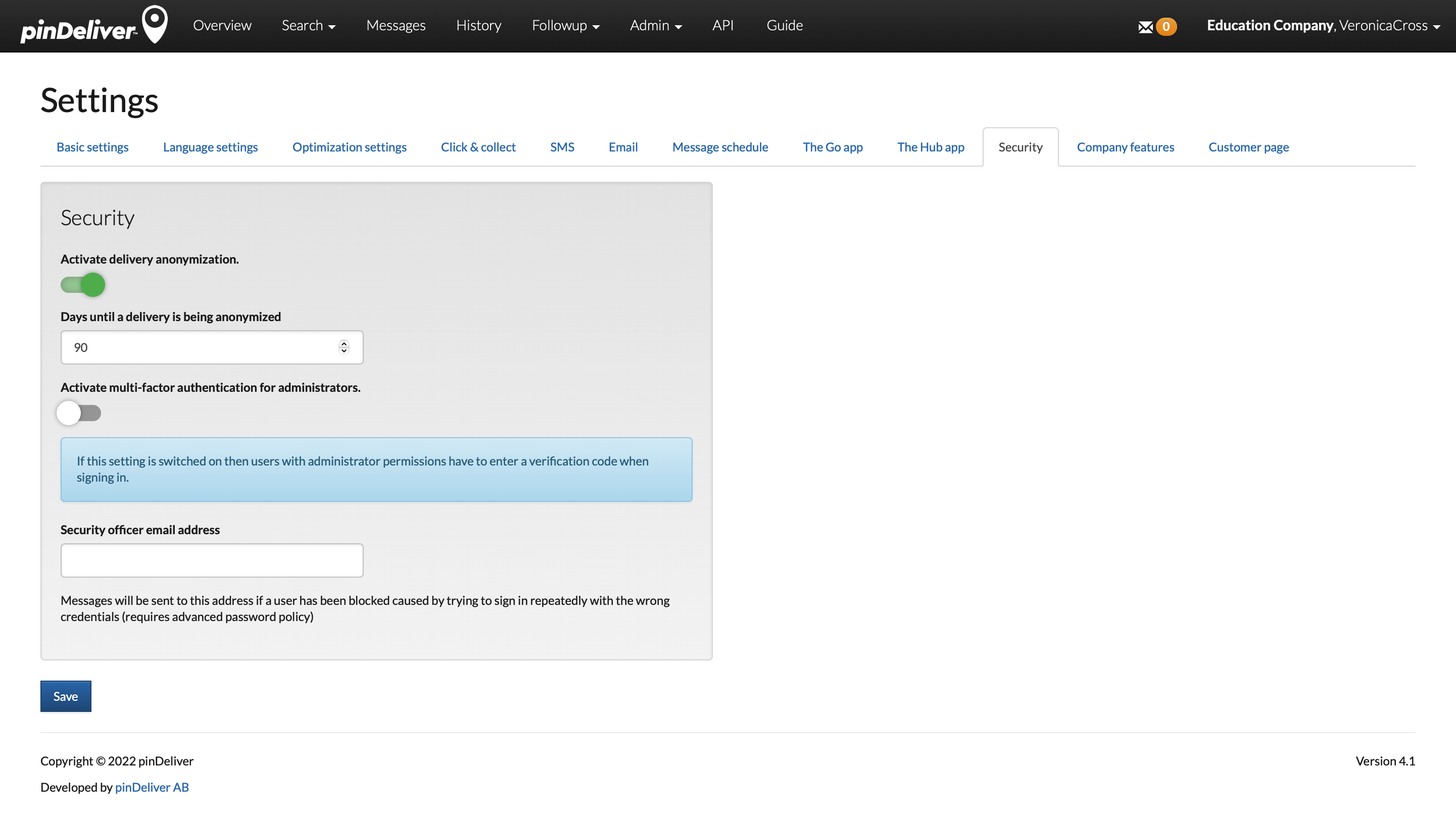
Since pinDeliver processes a significant amount of personal data, such as addresses and phone numbers, it is crucial to prioritize security and adhere to GDPR regulations. This page provides options to enhance data security and prevent unauthorized access.
You can enable automatic data anonymization by checking the Activate delivery anonymization option. Afterward, you can specify the number of days it takes for data to be anonymized by entering a value in the Days until a delivery is being anonymized field.
Additionally, you have the option to implement two-factor authentication for all administrators. Enabling Activate multi-factor authentication for administrators will require administrators to enter a verification code during the login process.
To further enhance security, you can configure an advanced password policy in the Company settings. This policy can automatically block a user’s account after multiple unsuccessful login attempts, and an email notification will be sent to the email address specified in the Security officer email address field.
Company features
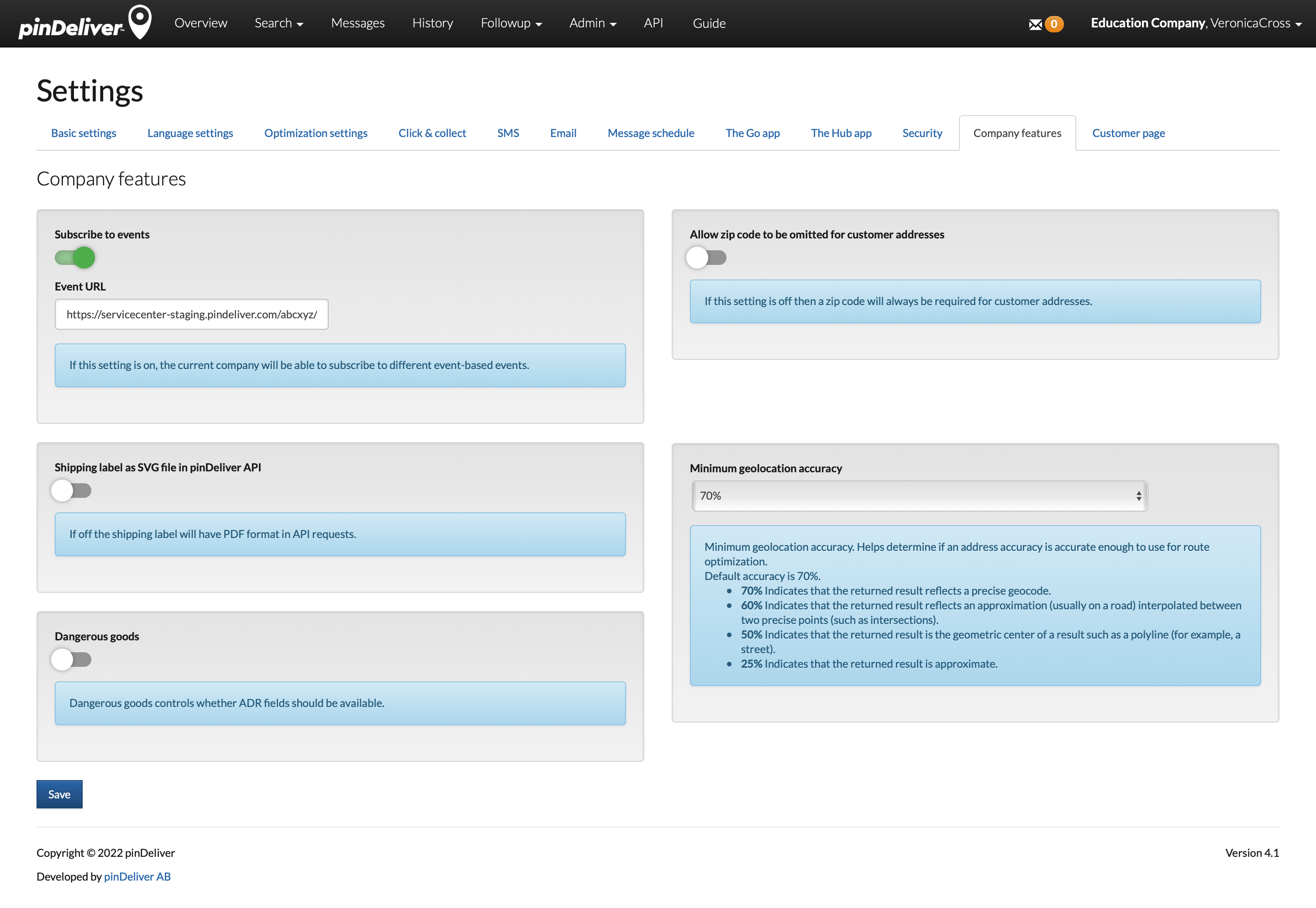
Within the Company Features section, you can establish customized settings for your pinDeliver account. These settings will apply to all Delivery Groups and Senders.
| Field | Explanation |
|---|---|
| Subscribe to events | When enabled, the company can subscribe to various event-based notifications. For event details, refer to the Event URL field explanation |
| Event URL | This is the URL where pinDeliver sends event notifications for different triggers within the platform. Triggers include events like order routing, route start, and delivery completion. |
| Shipping label as SVG file in pinDeliver API | Use this setting if you prefer to export shipping labels in SVG format instead of the default PDF format. This is only applicable when using API. |
| Dangerous goods | This setting controls the availability of ADR fields. If enabled, these fields will be available for use. |
| Allow zip code to be omitted for customer addresses | When turned off, a zip code will always be required for customer addresses. Enabling this setting allows flexibility in not requiring a zip code for every order, which can be useful for new addresses or when address data is missing zip codes. |
| Minimum geolocation accuracy | This setting specifies the minimum geolocation accuracy required to consider an address accurate enough for route optimization. Default accuracy is 70%.
|
Customer page
This settings page is where you can specify the information and features visible to the customer or recipient when they access the status page through the provided link. These settings apply to all orders within the account, with the option for minor adjustments specific to individual senders.
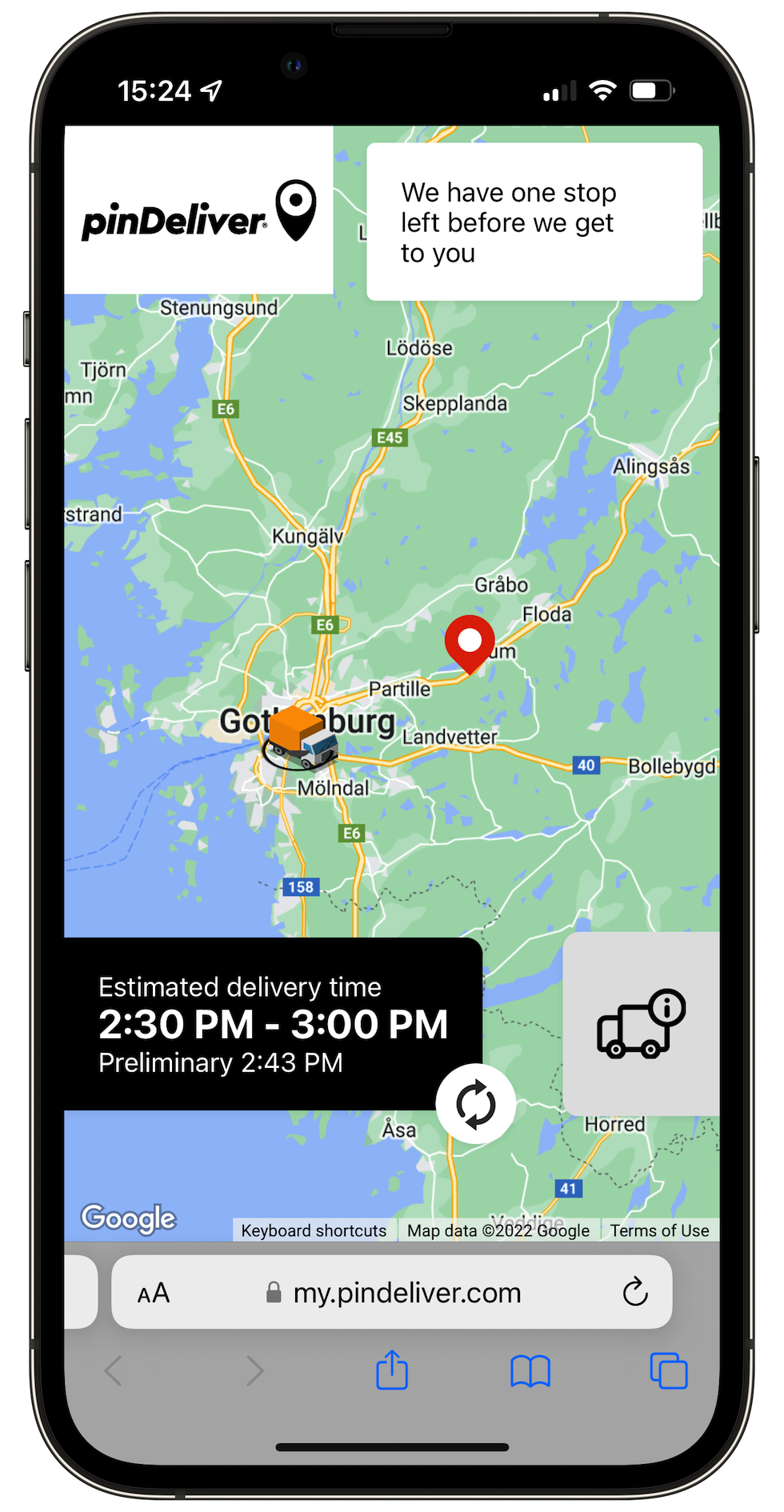
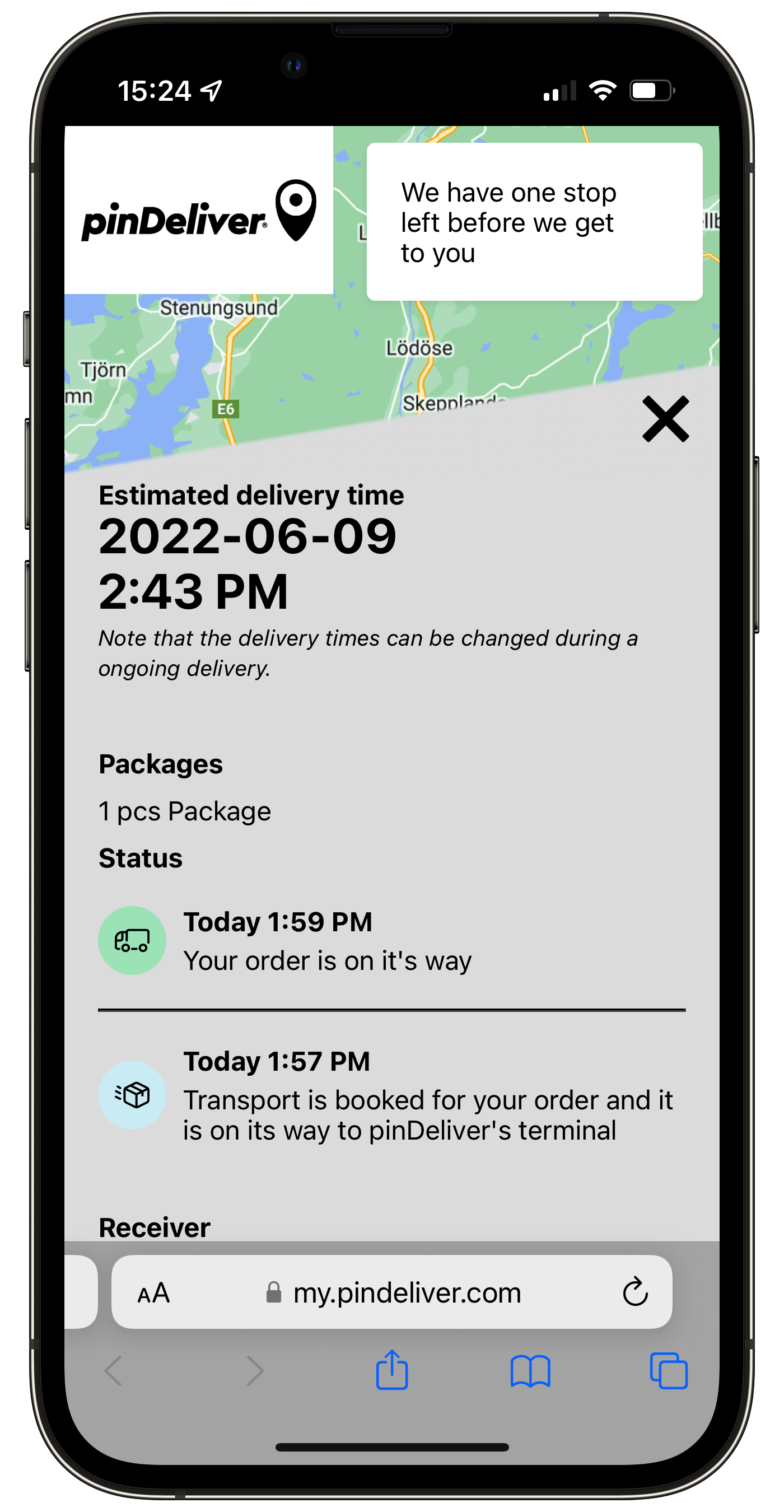
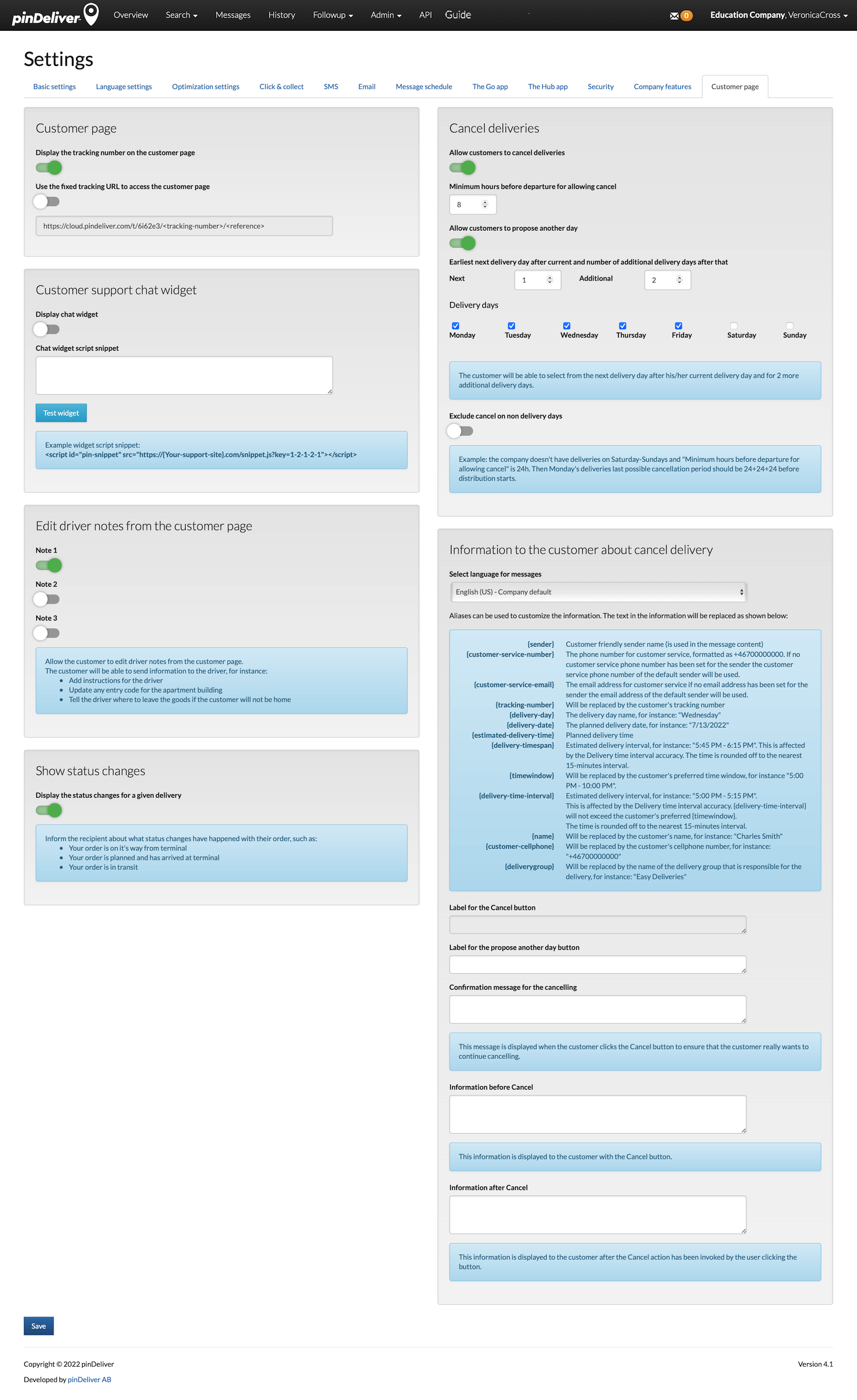
| Segment | Field | Explanation |
|---|---|---|
| Customer page | Display the tracking number on the customer page | Show the order tracking number on the customer page. |
| Use the fixed tracking URL to access the customer page | Enable this setting to use a predefined format for the tracking URL. This allows the generation of the tracking URL from other systems by providing specific values. | |
| Customer support chat widget | Display chat widget | Enable the option to display specific chat widgets. Please contact the pinDeliver support for more information. |
| Chat widget script snippet | Paste the script snippet in this field to enable the chat widget. | |
| Edit driver notes from the customer page | Note 1 | Show driver notes on the customer page. The customer can view and modify notes. The field is named Customer info 1 on the order and can be used for instructions to the driver, such as:
|
| Note 2 | Similar to Note 1, but for Customer info 2. | |
| Note 3 | Similar to Note 1, but for Customer info 3. | |
| Show status changes | Display the status changes for a given delivery | Inform the recipient about status changes that have occurred with their order, including messages like:
|
| Cancel deliveries | Allow customers to cancel deliveries | Check this option to allow customers to cancel a delivery based on the settings below. |
| Minimum hours before departure for allowing cancel | Specifies the number of hours before the planned route start that a customer can cancel a delivery. | |
| Allow customers to propose another day | Enable this option to allow customers to propose an alternative delivery day. | |
| Earliest next delivery day after current and number of additional delivery days after that | If a customer wants to propose a new delivery day, you can specify how many days ahead they can do so. | |
| Delivery days | Specifies which weekdays should be available for customers to select as the next delivery day. | |
| Exclude cancel on non delivery days | This is often used to limit cancellations to workdays. For instance, if the company doesn’t deliver on weekends and the cancellation window is set to 24 hours, then the latest time you can cancel Monday’s deliveries would be 72 hours before delivery begins. | |
| Information to the customer about cancel delivery | Label for the “Cancel” button | Specify the text that should be displayed as the label for the “Cancel” button. |
| Label for the “Propose another day” button | Specify the text that should be displayed as the label for the “Propose another day” button. | |
| Confirmation message for the cancelling | This message is displayed when the customer clicks the “Cancel” button to ensure that the customer really wants to proceed with the cancellation. | |
| Information before “Cancel” | This information is displayed to the customer along with the ”Cancel” button. | |
| Information after “Cancel” | This information is displayed to the customer after they have initiated the cancellation. |